
As many of my customers are still on VMware ESX4 & not yet upgraded to ESX4U1, I get many complains about virtual machine console timeout error from web access for non administrator users. Yeah, I have already pushed an upgrade recommendation, but as usual most companies take more time approving the change request than to carry out the change. If you have VMware ESX4U1 & you are facing a problem & hit this page, then please ignore this post as this bug was fixed in update 1. If you want to read the VMware KB on this issue you should check out:
Accessing the console of a Windows virtual machine through Web Access in ESX 4.0 times out
Problem Symptoms:
When accessing the console of a Windows virtual machine through Web Access in ESX 4.0 you get the following time out error:
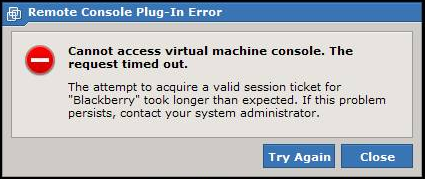
“Cannot access virtual machine console. The request timed out.” an image snapshot of the error is below:
The above symptom is the common one I have always seen, but as per VMware KB there are many other symptoms that other customers had as below:
- You cannot open the console of a Windows virtual machine through vSphere Client Web Access.
- Opening the console of a Windows virtual machine through vSphere Web Access times out.
- Closing and reopening vCenter client does not fix problem.
- You see one or more of the following errors:
-
- The attempt to acquire a valid session ticket for <virtual machine> took longer than expected.
- Cannot access virtual machine console. The request timed out.
Resolution:
The easiest & best resolution for this problem is to upgrade to ESX 4U1, else if that is not possible you will need to follow up the work around below as documented per VMware KB:
In VMware ESX 4 & prior to ESX 4U1 Users must have Windows Administrator privileges to access a virtual machine’s console. If you do not have Windows Administrator privileges, opening a virtual machine console times out. You can perform other functions and operations if you have vCenter Server administrator privileges, but you cannot open a virtual machine console. To grant appropriate Windows permissions on your vCenter server to resolve this issue:
- Log into the vCenter server with a user with Administrative privileges.
- Click Start > Run, type compmgmt.msc, and click OK.
- Temporarily place the user in the Local Administrators group.
- Place a shortcut for that particular virtual machine on the desktop:
-
- While the user is in the Local Administrators group, log in to vCenter Server via Web Access.
- Click the virtual machine then the Summary tab.

- Select the Generate Virtual machine desktop shortcut option.

- Click OK.
- Return to vCenter Server and revert the changes to the user account.
- Access the console of the virtual machine through the shortcut on the desktop.


Note: if after adding the user to the windows local administrator group he still can not access the console, restart the vCenter services & if that did not work then you might go as far as restarting vCenter.
I hope this article help many of you resolve the above problem as quickly as possible, as seeing the error caused by the issue you can not tell much about the error source. Please leave your feedback in the command area below.
14 responses to “When trying to access virtual machine using web access you get “Cannot access virtual machine console, the request timed out””
I was fighting the following bug for days:
The attempt to acquire a valid session ticket for took longer than expected.
This workaround did the job. Thanks heaps. From readng the forums, it looks like a problem with Firefox 3.6 and there’s no sign of a fix on the way. Again, nice one!
Hi Peter,
I am glad that helped you, though you should consider upgrading your environment to VMware ESX 4U1 as it fix many other bugs as well.
Enjoy,
Eiad
There is one tool, which can also help.
http://labs.vmware.com/flings/vgc
Hi Uttam,
Thanks for the tip.
Enjoy,
Eiad
Thanks a lot. Really work for me.
Hi Kent,
You are welcome. I am glad it helped :).
Enjoy,
Eiad
there some bugs in the web access in 2.0.2 i guess. i had problems with accessing guest desktops with FF plugin (also with cache cleared and using a clean profile with no extensions like script/flash blocking etc.) i had also the same problem on IE.
after trying all day i finally downgraded to 2.0.1 and all problems are gone. i don’t know what bugs are removed in 2.0.1 but surely some web-access-bugs exist in 2.0.2
Hi Newsgrabber,
Thanks for sharing with us, although I am not aware of it.
Enjoy,
Eiad
Thank you for your article, unfortunately it didn’t solve my problem.
I have the famous pop-up window:
“Cannot access virtual machine console. The request timed out.
The attempt to acquire a valid session ticket for “Windows XP Professional 1″ took longer than expected. If this problem persists, contact your system administrator.”
I’m using VMWare Infrastructure web access:
VMware Infrastructure Web Access
Version 2.0.0
VMware Server
Version 2.0.2
With Firefox 3.6.9 it shows the problem described above, with Internet Explorer 8.0 (64-bit) it keeps asking to install the VMware Remote Console Plug-in, even if it’s already been installed (if I try to reinstall it the wizard only shows the “remove” option, I also tried to remove it and reinstall it).
I’m logging on the same PC where the server is running and try to access a VM running on it. I use a user that has administrator rights.
A workmate of mine can log in from his and work with the VM PC without any problem.
I tried installing VMWare Guest Console vers. 1.1.0 but when I click on “add host” I always get the error “VIX – Failed to connect to host or proxy”, I tried both using “localhost”, my PC computer’s name and its IP address without success.
I also tried to shutdown Windows Firewall, no success again.
I’ve downgraded my installation to VMWare Server 2.0.1 but nothing changed.
Hi Massimiliano,
I am sorry to inform you that article is about vSphere(VMware ESX) not VMware Server. Though make sure you use an account with administrator privileges on your VMware Server when trying.
Enjoy,
Eiad
This is a known issue with VMware virtual machine console and Firefox 3.6.
Resolving the problem
To access the VMware virtual machine console, use an earlier version of Firefox or an alternative Web browser
Hi Ahmed,
Thanks for the tip.
Regards,
Eiad
DO NOT install vmware server on Ubuntu server 10.10 because it’ll cause you infinite problems! reinstalled the whole operating system several times… it works fine for a couple of days and then the trouble starts:
– automatic updates cause it to malfunction
– every time i try to access the console from IE9 it stops working normally! you can’t even stop the server anymore!
– windows guests malfunctions
– can’t open console with anything but IE8 or very old vesion of Mozilla…
– i read somewhere that for some reason you have to have static ip address…
Hi Frane,
I have not used VMware Server for a while on Ubuntu so I can not comment, but I have always used VMware Workstation on Ubuntu 10.10 without any problem.
I will leave it here so others can share their experiences as well.
Regards,
Eiad