
Everyone who had been using VMware for a while, would appreciate VMware VMotion. Actually VMware VMotion have always been a distinguished feature of VMware ESX servers. Despite of VMotion has always been a great feature, people using it at earlier stages used to have a tough time when having to use it across different CPU generation. That meant companies had to actually put similar hardware server in the same cluster, to guarantee that VMotion work smoothly. This was not possible at all the time, and was a tough call for implementers as they had to cheat masking manually in order to avoid VMotion not accepting to run between different CPU genrations.


Although VMware EVC (Enhanced VMotion Compatibility) has been around for a while, many VMware administrators still does not know about it or just over looked it. VMware EVC is actually the defacto solution for VMotion across hosts with different CPU generations. It will automatically masks the non compatible features of different generation cpus from the hosts, which give you the ability to VMotion across hosts with different CPU generations. Please note VMware EVC has been supported since VMware ESX 3.5U2, but was highly Enhanced in VMware vSphere.
Ok, now I got your attention & you want to know how to actually enable VMware EVC & what is the pre-requisite for it. The main pre-requisite for VMware EVC is to have your host to use the same CPU vendors. So if using Intel all servers in a cluster have to use intel & same for AMD. Don’t mix interl & AMD in the same VMware cluster so you can use VMotion across all the servers in the cluster. Actually VMware EVC seems to support most of the new AMD & Intel CPUs, but to make sure it support yours you might want to look at the support charts at: http://kb.vmware.com/selfservice/microsites/search.do?language=en_US&cmd=displayKC&externalId=1003212
In order to enable VMware EVC on your hosts & Cluster you will have to ensure the following Bios settings are enabled for each of the involved cluster:
1- Hardware Virtualization is Intel VT on Intel processors and AMD-V on (supported) AMD processors
2- Execute Protection is Intel eXecute Disable (XD) on Intel processors and AMD No eXecute (NX) on AMD processors
The next step after enabling the Hardware Virtualization & Execute protection you will need to go to your VMware Cluster Settings & enable VMware EVC as showing in the below images.
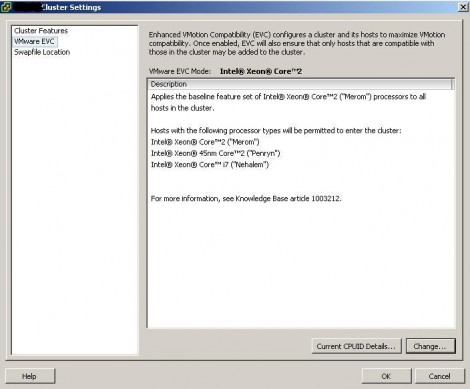

After doing this each server you add to your cluster will have VMware EVC enabled & virtual machines will be able to VMotion across different cpu generations in the cluster.
Please note when you are enabling VMware EVC for an existing cluster, that it will request you to shutdown all the virtual machines running into that cluster to enable VMware EVC for it. For work around on this please check my other post: How to enable VMware EVC on VMware vSphere & VI3 without downtime
I have here covered the main concept of VMware EVC & how to enable it. If you need more details please check the VMware document at: http://kb.vmware.com/selfservice/microsites/search.do?language=en_US&cmd=displayKC&externalId=1003212
I hope this help. Please leave us a comment of any questions, concerns or feedback.
5 responses to “VMware EVC (Enhanced VMotion Compatibility) enable VMware VMotion across CPU generations”
[…] Sponsored Ads « VMware EVC (Enhanced VMotion Compatibility) enable VMware VMotion across CPU generations […]
[…] is present, it’s just that Red Hat has not designed a suitable management feature such as VMware EVC to take advantage of […]
i have a cluster A containing 3 host(dell power edge710) of esx 3.5 and evc is enabled on the cluster with baseline intel core2 merom.and i have another Cluster B with 4 esx host(dell poweredge 1850)EVC is enabled with base line intel xeon core 2 merom,intel 45nm core2. i want to migrate all my host from cluster A to cluster B without any downtime.do i have to power off my vms .is there any workaround.
pls give me reply in my mail(abyaktakumar@gmail.com)
Hi Abyakta,
For me it seems that you have the same EVC base for both clusters. Are you able to VMotion your VMs between both clusters? In other word, are they seeing the same LUNS? if so then you can complete your restructuring as follow:
1- Evacuate all the VMs on one of your 3 hosts to migrate to the other 2 in that cluster
2- Enter that host into maintenance mode.
3- move the host which is in standby mode to cluster B.
4- get the host out of maintenance mode.
5- Migrate as many VMs from cluster A to B trying to free up a second host in cluster A.
6- then repeat step 2-4 for the second host.
7- repeat the procedure for the last server.
I hope this help,
Eiad
Eiad ,
thanks for your reply i am extremly sorry that i didnot give you one important information .
cluster A is managed by one vcenter and cluster B is managed by another vcenter.
i dont know about the same lun but if you could explain me about both possibilites of having same lun and different lun the i will greatfull to you.
how can i migrate the three host along with vms without any down time in this senario.
Abyakta
abyaktakumar@gmail.com